 Now
What Now can do
Just what you need to write it, place it and start it, shown on real app screens.
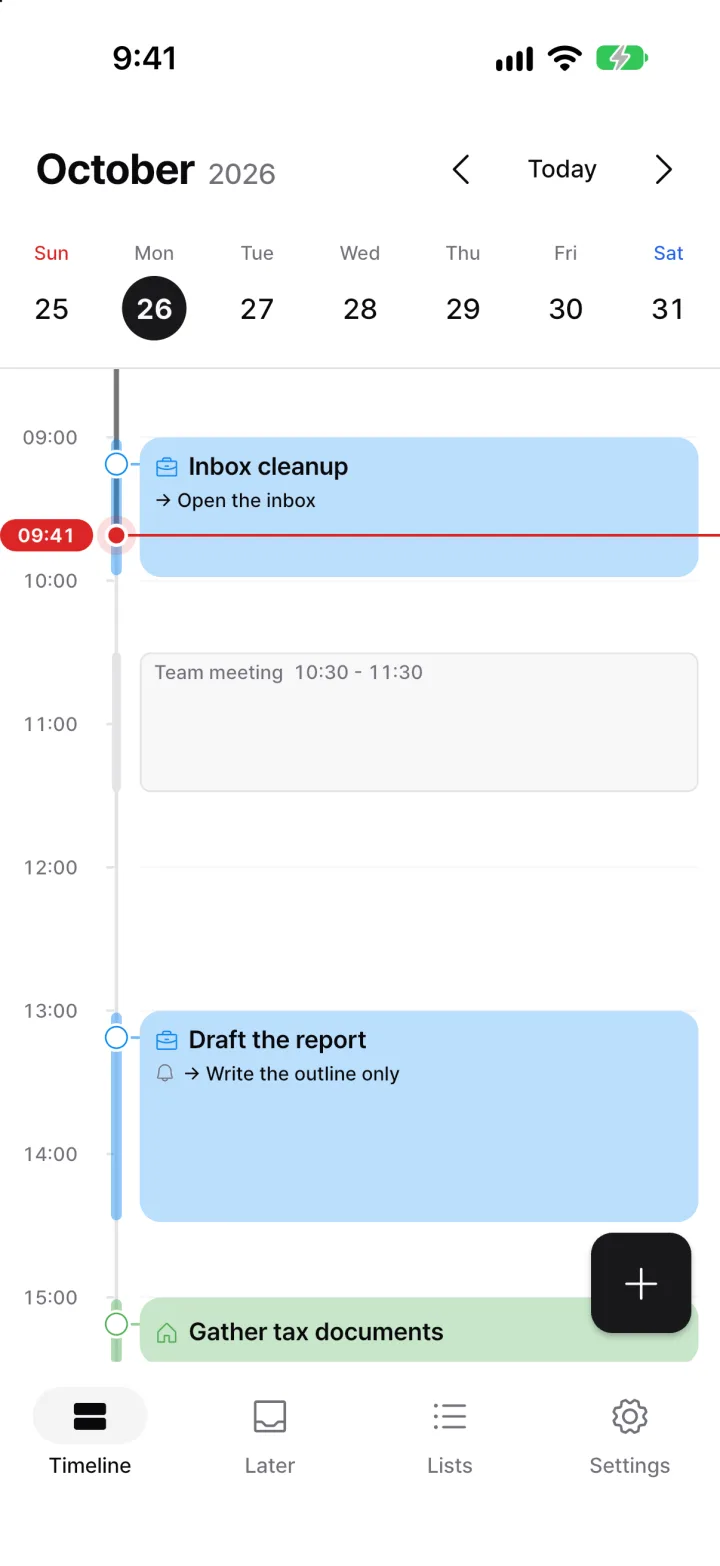
Your day, on time
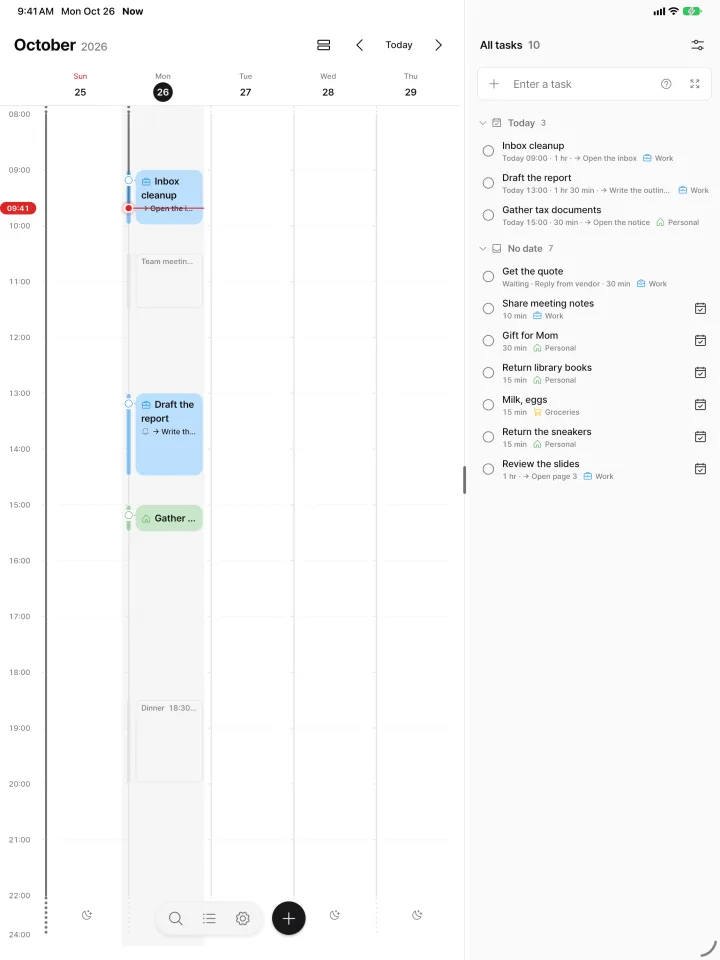
Put tasks on the clock and see today at a glance. A red line marks the current time.
- Meetings and plans from your device calendar show as faint bands. (Read-only, never changed.)
- Cards take their list’s color. Back-to-back tasks from the same list join into one block.
- Drag to move a task. Drag on empty space to create one for that time.
One thought, one line
Type it into one box and you’re done. Add a list and duration on the same line.
!important,#Personallist,30mduration- In Korean, dates and times like “tomorrow 3 pm” are read and shown as a chip. Tap the chip to keep it as plain text.
- Expand to multiple lines for a brain dump. Each line becomes a task.
Sort it out later
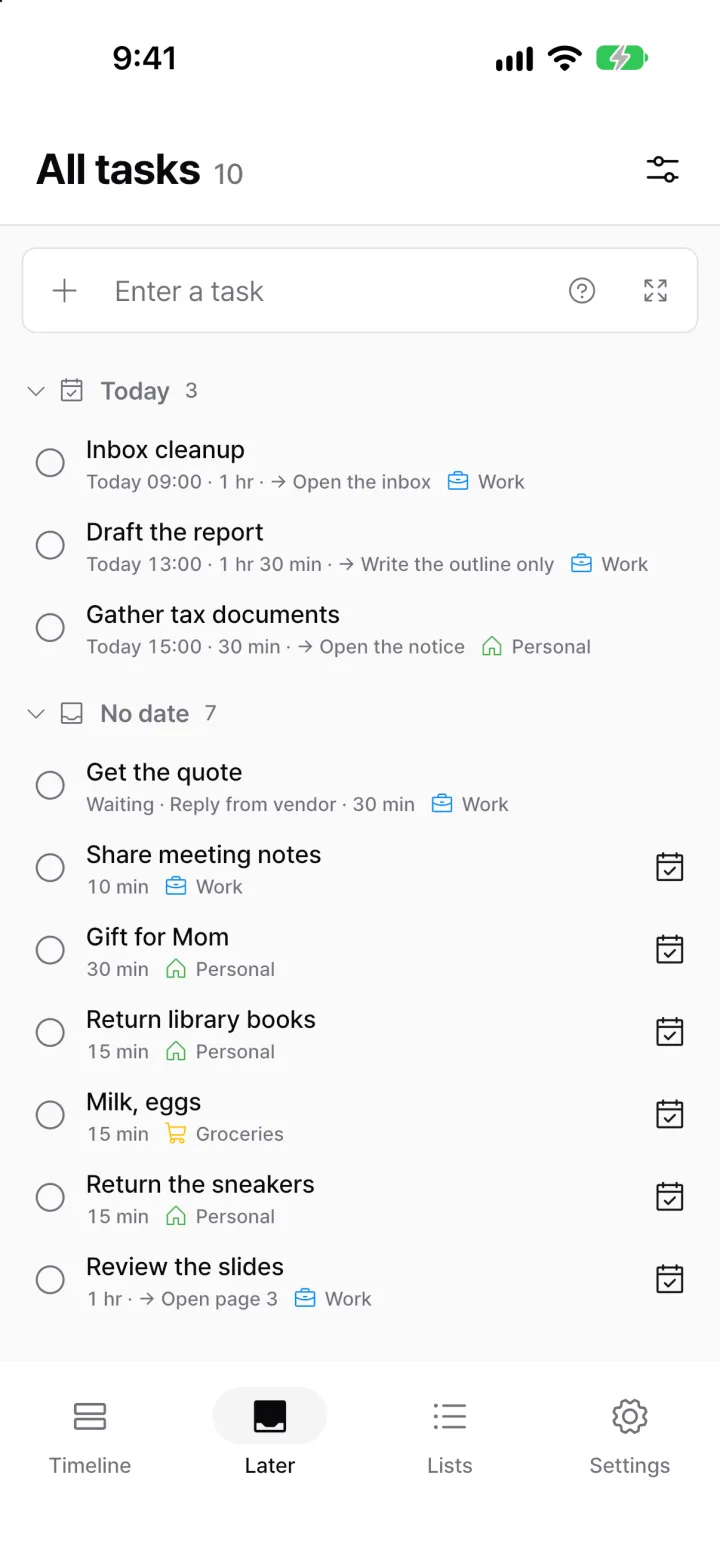
Tasks without a date gather in Later. No badge counts nagging you.
- Today’s tasks and undated tasks are shown apart.
- Tasks waiting on someone gather under “Waiting”.
- Group by status, list or date, and sort by newest, shortest or most postponed. Each screen remembers its view.
- JK pick a row, ⇧+↓ pick several, complete, move or delete them at once. Everything can be undone
Fit it into free time
Tap the calendar button to see only the free slots around your events. Pick one and it lands on the timeline.
- Only slots long enough for the task’s duration are shown.
- You can undo it afterwards.
Just start for 5 minutes
Tap Start and the timer runs right away. Only the time left and the first step are shown.
- 2, 5 or 10 minutes, or no limit. It keeps going if you leave the app and notifies you when time is up.
- Jot down anything that comes up in a memo.
- Swipe the screen down and the session continues in a small bar.
- On wide screens, the task stays open beside the timer so you can edit as you go. Changes save right away.
What part is hard?
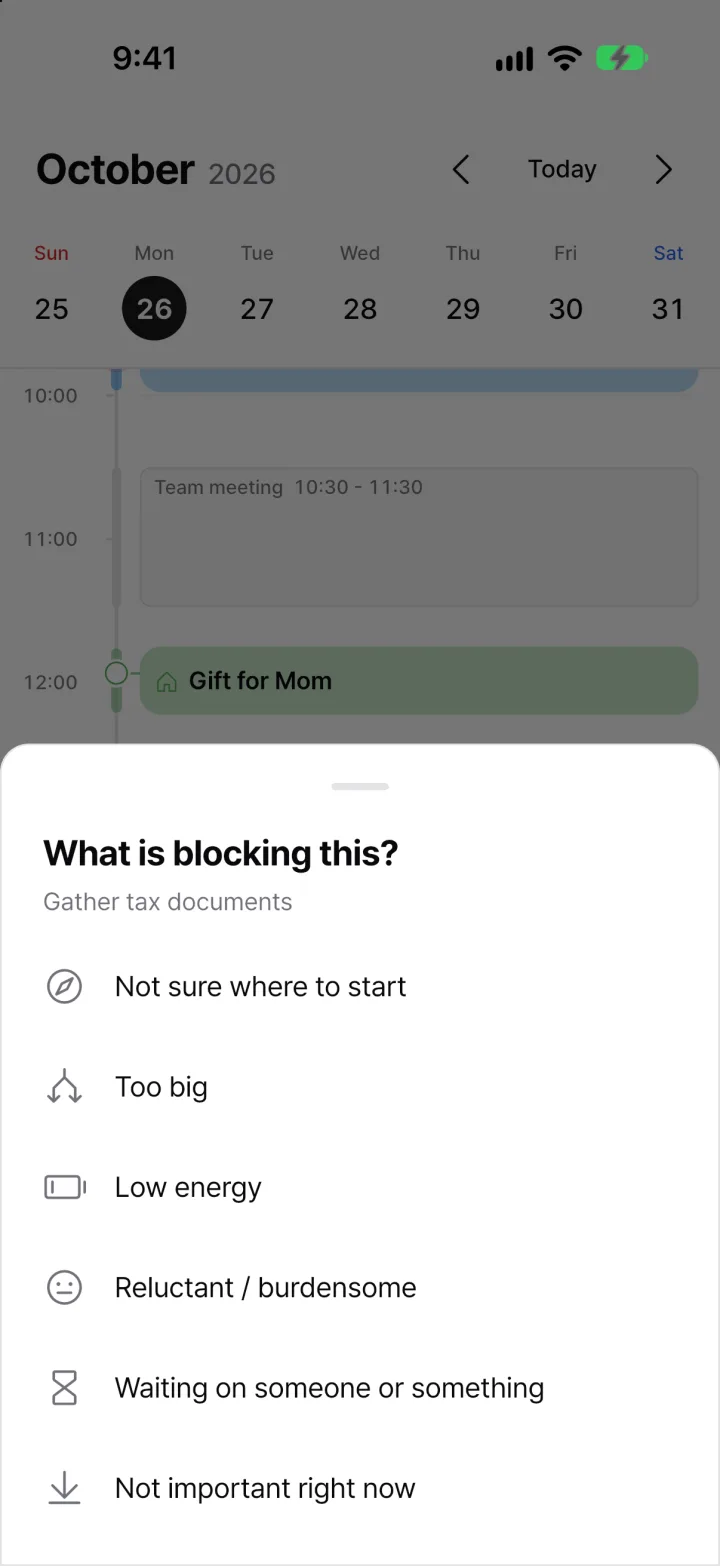
Put the same task off more than twice and Now asks once, then leads straight to a next step that fits.
- Not sure where to start → pick a first step
- Too big → split it, one task per line
- Low on energy → try just 2 minutes
- Waiting on someone → move to Waiting
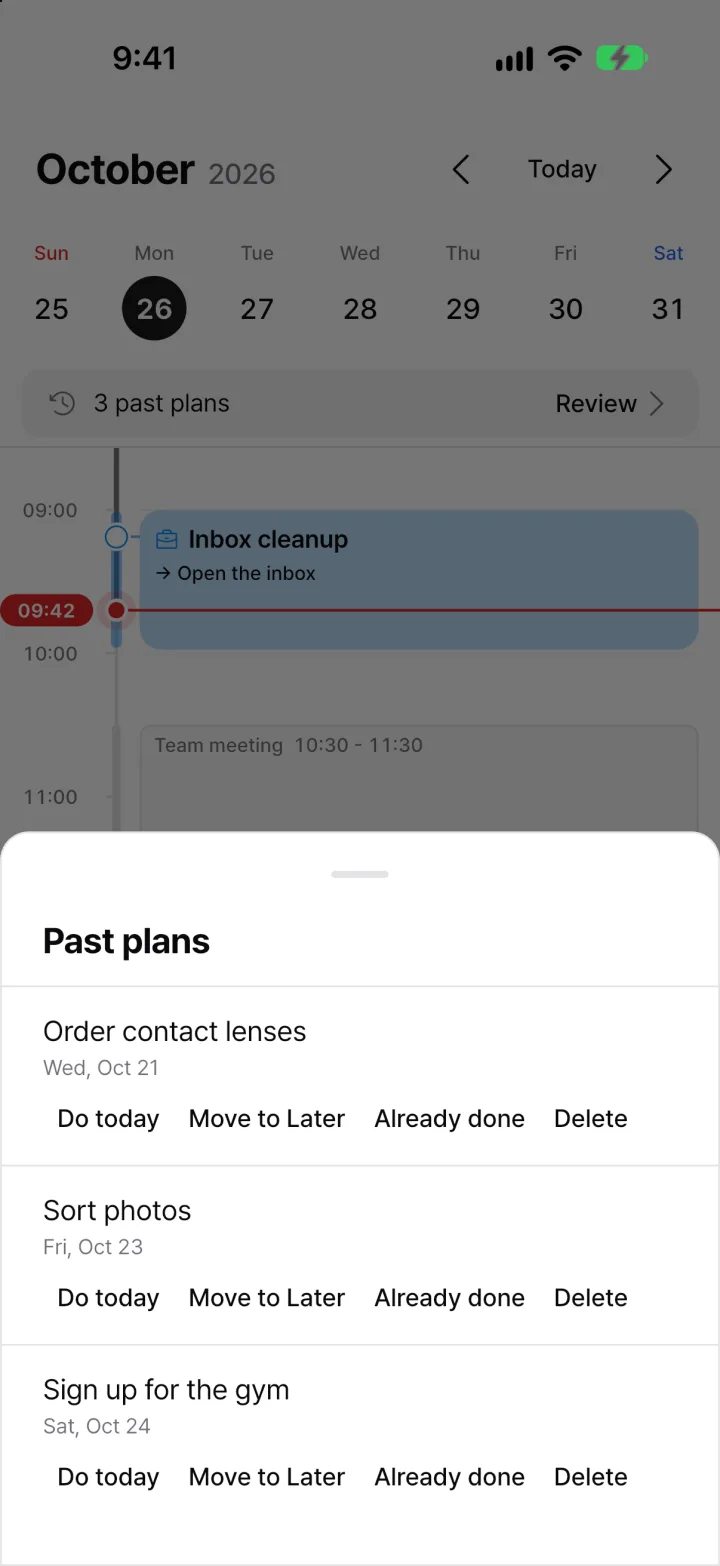
Clear past plans at once
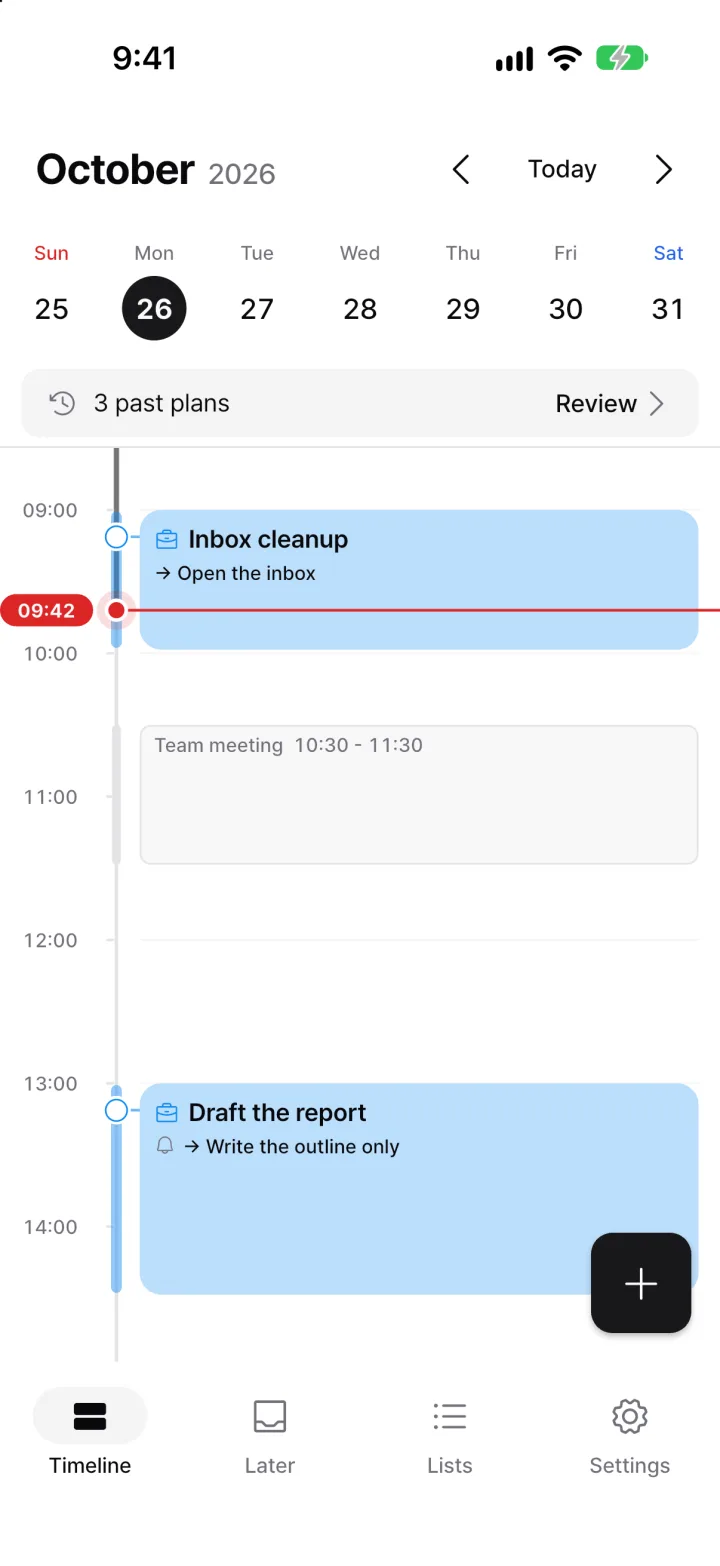
Unfinished past plans are flagged in one line above today. Nothing moves on its own.
- For each: do today, move to Later, already done or don’t need to.
- Do today puts it into today’s remaining free time. Everything can be undone.
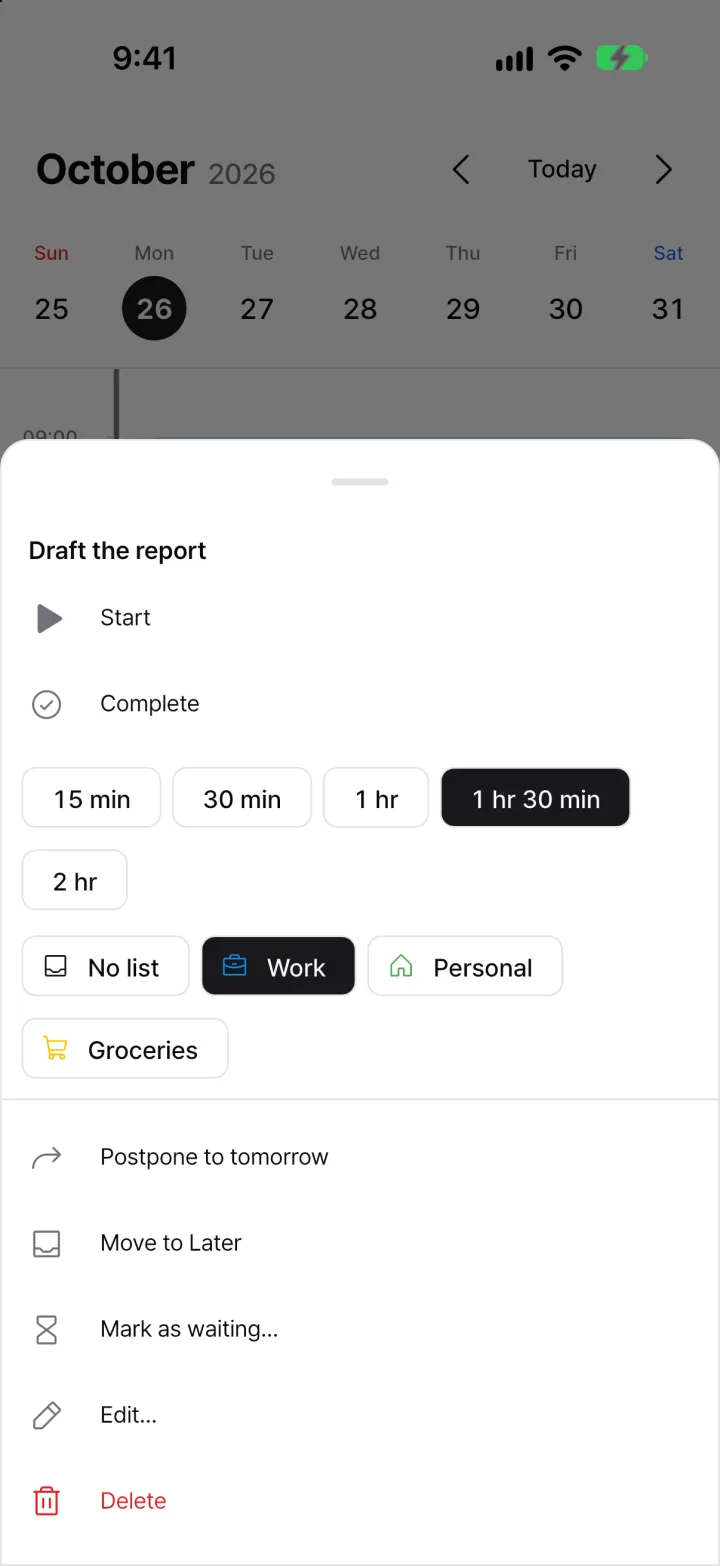
Long-press for everything
Long-press and release a task to open its menu. Keep moving while pressed to drag it.
- Start now, done, important, duration, list, push to tomorrow, move to Later, waiting
- On the web and desktop, right-click to open it.
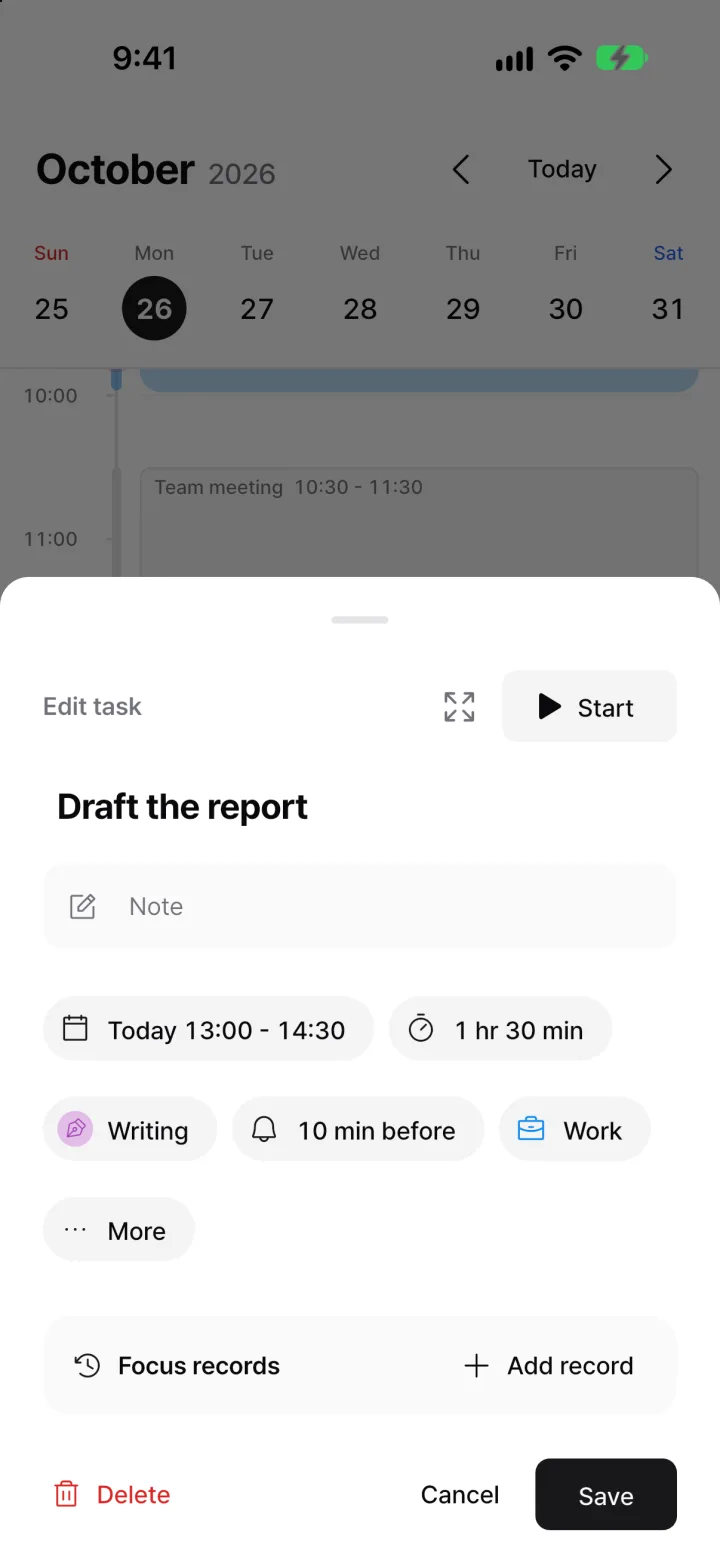
Only what you need
A task carries only a few details. Fewer choices make it quicker to write down.
- Important, list, duration, date and repeat, reminder, first step
- Reminders lead with the first step, e.g. “10:00 · Start by opening the notice”.
- Close without saving and the title is kept, with an undo.
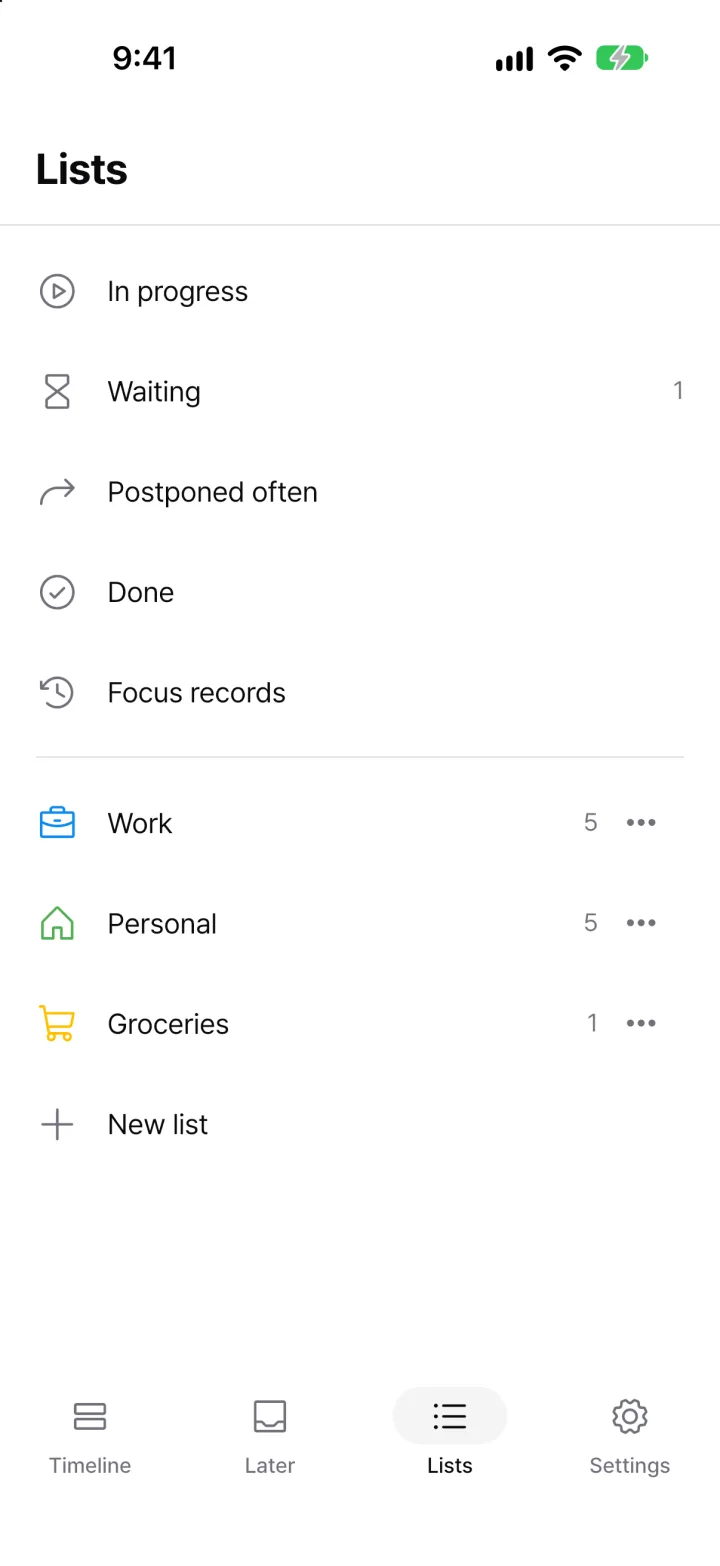
Lists and smart lists
One list per task. Deleting a list keeps its tasks.
- Smart lists: continue, waiting, put off often, completed, focus records
- A list’s color becomes the color of its task cards.
A whole week on a big screen
On iPad and the web, the timeline and Later sit side by side, and week view shows several days at once.
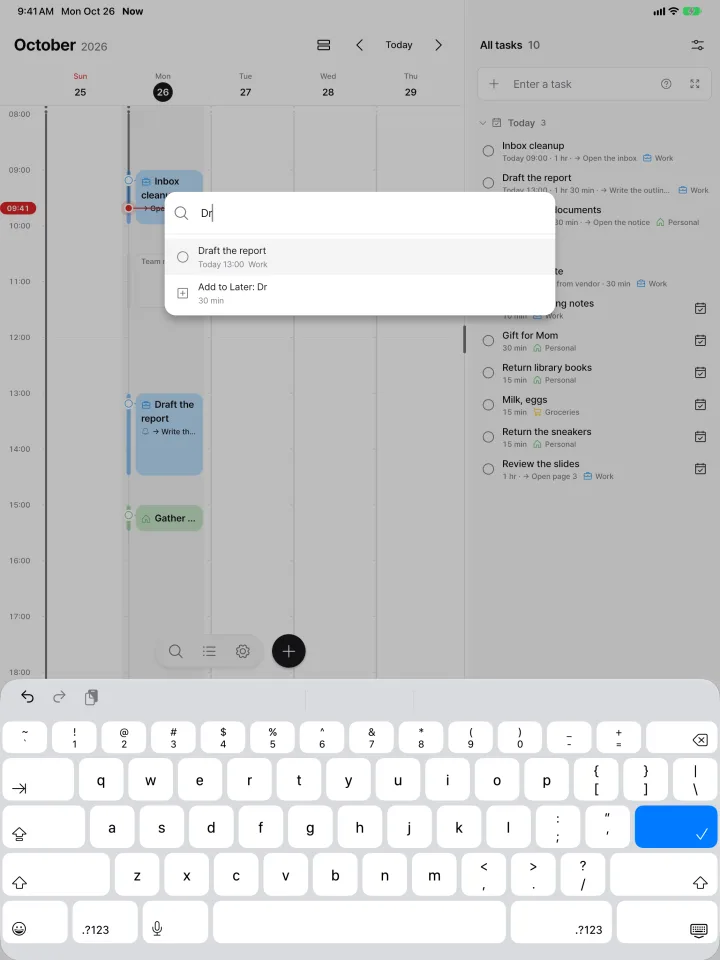
- ⌘K command palette to search tasks, jump to dates and open settings from the keyboard
- N new task, T today, ←→ day by day, W week view
- Week view shows 7, 5 or 3 days to fit the screen width.
- On very wide screens a sidebar appears. Drag a task onto a list to move it, and press ⌘B to collapse it
Light, dark or your color
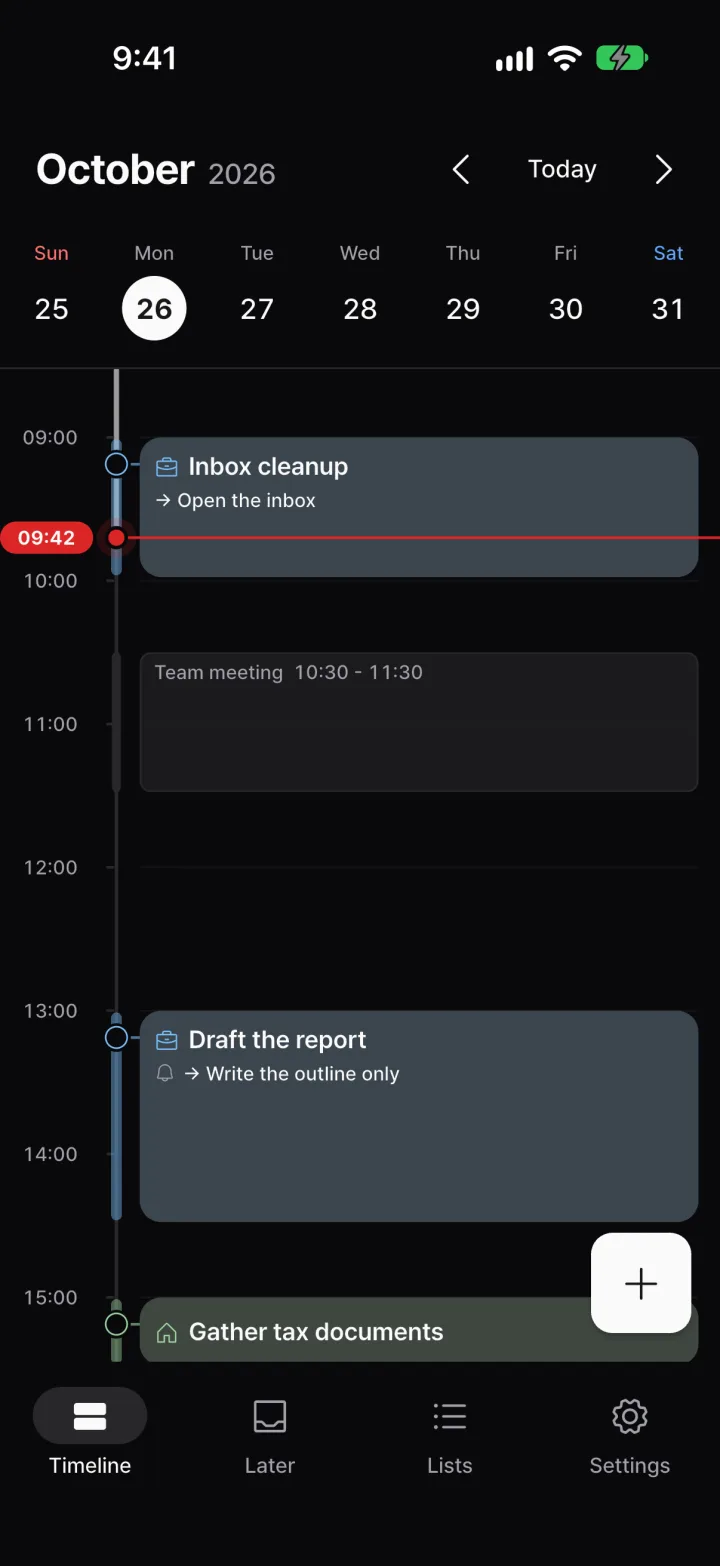
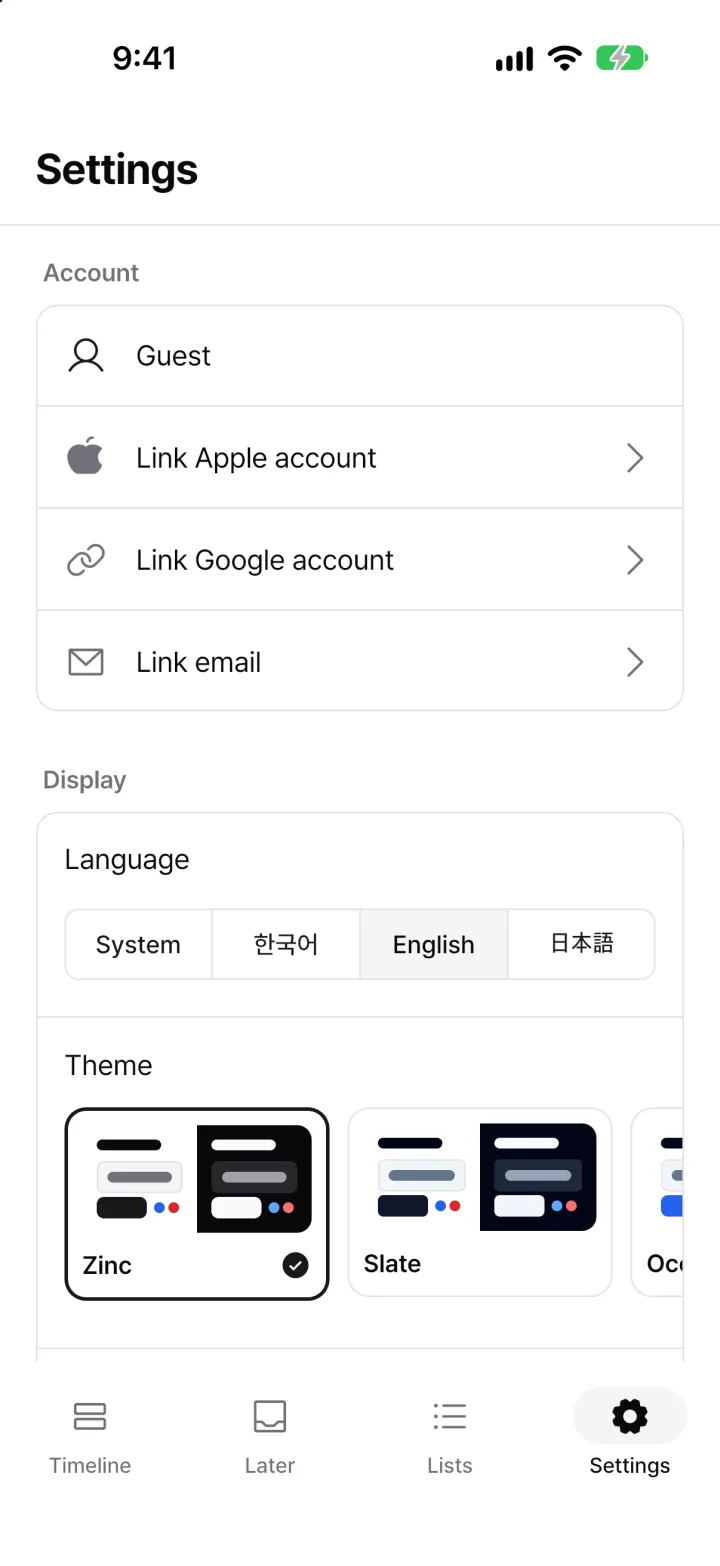
Follow light, dark or the system, and pick from 12 color themes. Every theme is free.
- Every theme is checked for text contrast.
- Settings let you change the morning briefing time, device calendar and language.
And more
Home & Lock Screen widgets
See what’s now and next, with the first step, without opening the app. Updates on time even when the app is closed. (iOS)
Siri, Shortcuts, Action button
Add a task without opening the app. There’s a Control Center button too. (iOS 18+)
Reminders that lead with the first step
When it’s time, you see the first step to take before the task title.
Reads your device calendar
Shows meetings on the timeline and keeps free-time suggestions clear of them. Never creates or edits events. (iOS & Android)
The same day, everywhere
Web, iPhone, iPad and Android. Sign in and your tasks stay in sync.
Home Screen quick action
Long-press the app icon and choose “New task” to jump straight to the input.
한국어 · English · 日本語
The app and dates are available in three languages. Switch in Settings.
Usage stays on your device
Habit metrics never leave your device. Deleting your account deletes tasks, lists and notes too.
All free
Every feature is free, including the morning briefing and all themes.